Contractor Invoicing Software: A Practical Selection Guide
Compare contractor invoicing software with a practical checklist for estimates, project records, invoices, payments, security, exports, and team adoption.

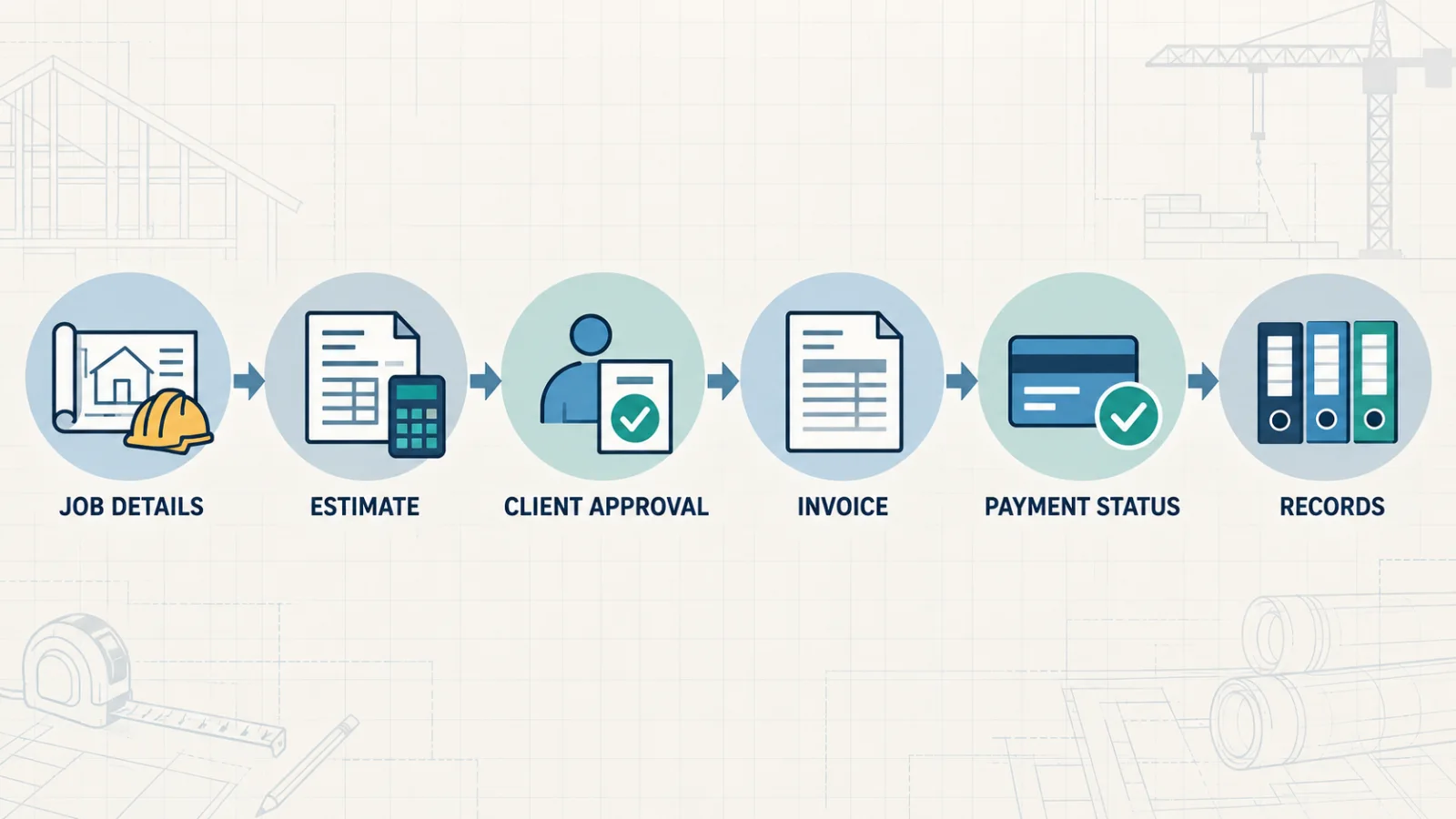
Check the same job details when testing an estimate-to-invoice workflow. AI-generated illustrative scene.
Quick answer: choose contractor invoicing software by testing a sample job from estimate to invoice. Check which customer details, line items, quantities and terms transfer, whether you can record an unpaid balance, and whether the downloaded document opens correctly. Use fictional customer details, run the same test on each shortlisted platform, and check the plan required for every feature.
A contractor can lose time fixing an invoice even when the invoice editor looks good. A revised scope may not carry over from the estimate; a payment note may sit outside the job record; a downloaded PDF may omit a field the customer needs. Check these handoffs before moving customer data or training your team. The trim-replacement example below gives you one repeatable test without using a real customer's information.
What contractor invoicing software should do
Workflow area | What to test | Why it matters |
|---|---|---|
Customer and job records | Create a customer, project, job reference, contact details, and document history | Keeps documents connected to the correct work. |
Estimates | Build clear line items, quantities, assumptions, exclusions, and an expiration or review date | Creates a traceable baseline before invoicing. |
Approval handoff | Confirm what information carries into the invoice and what still requires review | Reduces re-entry without treating an estimate as completed work. |
Invoices | Create a progress, partial, or final invoice that remains understandable to the customer | Supports the actual billing pattern used by the business. |
Payment status | Record sent, due, partially paid, paid, overdue, or canceled states as supported | Gives the team a reliable follow-up view. |
Records and exports | Export documents and the business data needed for accounting and retention | Avoids trapping essential records inside one vendor. |
The IRS says a business may choose a recordkeeping system suited to its needs as long as it clearly shows income and expenses. It also identifies invoices, receipts, paid bills, and other supporting documents as records that should be organized and kept safely. Invoicing software can support that work, but it does not replace the business owner’s responsibility to maintain complete records or obtain tax advice. See the IRS business recordkeeping guidance.
Separate must-have features from attractive extras
Start with the billing workflow you use now. A solo remodeler, a specialty trade, and a multi-company contractor may need different controls. Write down the steps that happen every week, the exceptions that cause mistakes, and the reports or exports your bookkeeper actually requests. Then classify each requirement as essential, useful, or optional.
Essential: customer and project references, estimates, invoices, document numbering, payment terms, status tracking, and reliable exports.
Workflow-specific: project expenses, partial invoices, credit notes, multiple companies, custom branding, detailed quote editing, or statistics.
Operational: mobile usability, permissions, support response, data import, backups, and an understandable cancellation process.
Optional: AI assistance, advanced automation, or integrations that are valuable only when the team will actually use them.
Do not choose a product from a feature-count table alone. A feature may exist only on a higher plan, work differently than expected, or require a manual step. Verify the current plan page and test the exact workflow with representative data.
Test a sample job before moving customer data
Create a sample customer and project using non-sensitive test information. Check required fields, duplicates, search, and how records are grouped.
Build an estimate with labor, materials, quantities, assumptions, exclusions, payment terms, and at least one revision. Confirm that the PDF is readable on a phone and on paper.
Record the customer decision using the platform’s supported process. Do not assume the software provides legally sufficient signatures, approvals, or change orders unless that capability is explicitly documented.
Create an invoice from the accepted information. Check what transfers, what remains editable, and whether the invoice clearly identifies the customer, project, work, amount, dates, and payment terms.
Simulate a partial payment, correction, or canceled document using only supported actions. Confirm that the history remains understandable rather than silently overwriting the earlier state.
Export the invoice, customer list, and other records you would need if you changed systems. Open the exported files instead of assuming the download is usable.
Repeat the flow on the devices and connection quality used in the field. Include the person who will actually create and send documents.
A worked trial: one trim-replacement job
Use this fictional example when comparing your shortlist: replace the interior trim around six doors, keeping the existing doors. Label the customer “Demo Customer” and the project “Trim Test”; do not enter a real address or customer details. There are no recommended prices in this example. Keep the same test information for every platform so you compare the workflow, not different jobs.
Test step | Sample record | What counts as a useful result |
|---|---|---|
Estimate | Removal and disposal, replacement trim, fitting, and the agreed finish; quantities or assumptions recorded separately | The customer-facing document makes inclusions and exclusions understandable. |
Revision | The customer requests one additional door before the job starts | You can identify the original six-door scope and the revised seven-door scope; record manual steps if the software has no revision history. |
Invoice handoff | Invoice only the work and amounts agreed for this test | Check customer, project, descriptions, quantities and terms individually; record anything you have to re-enter or correct. |
Follow-up | Make a note that part of the fictional balance remains unpaid | Check supported payment records and outstanding-balance views; manual payment tracking is not card or ACH collection. |
Independent record | Download the available sample document and open it outside the app | Check legibility and the fields you need; a PDF download does not prove bulk customer export or accounting integration. |
For each row, record “works as needed,” “manual workaround,” “not available,” or “not tested,” along with the plan and date checked. If a capability is missing, do not mark it as passed because a salesperson says it is planned. A short record of the actual steps is more useful than awarding an unexplained best-software score.
When testing YOTU, start with the supported US estimates-and-invoices workflow on the construction page. Check the current US plans before relying on an additional module. Use this trial exercise to decide whether the document workflow fits your business; it is not a promise of tax decisions, automatic payment collection, bookkeeping, or faster customer payment.
Review security and data access before migrating
Invoice systems contain customer contact details, project information, prices, payment records, and business history. The FTC recommends regular software updates and backups, multi-factor authentication, controlled vendor access, and written security expectations. Ask how the platform handles accounts, permissions, backups, encryption, incident communication, deletion, and data export. See the FTC cybersecurity guidance for small businesses.
Security claims should be verified in current vendor documentation and agreements. A marketing badge is not a substitute for understanding who can access the account, how access is removed, and what happens to records after cancellation.
Compare the complete cost of adoption
Cost area | Question to ask |
|---|---|
Subscription | Which required features, users, companies, and document volumes are included in the plan? |
Migration | How long will cleanup, import, validation, and opening-balance work take? |
Training | Can the people who create documents complete the workflow without a private workaround? |
Errors | What does a duplicate, missed invoice, wrong project, or lost approval trail cost the business? |
Exit | Can customers, documents, and transaction history be exported in useful formats? |
Published prices and features change, so review the vendor’s current plan details instead of relying on an old comparison article. Use the same test script for every shortlisted product and document the result. That creates a decision record based on your workflow rather than someone else’s ranking.
Plan the migration before choosing a launch date
A successful software choice can still fail during migration. Decide which customers, open estimates, unpaid invoices, products or services, and project references must move. Separate active operational data from historical records that only need to remain accessible. Clean duplicates and incomplete contacts before import, then reconcile totals and document counts after the transfer.
Choose a cutoff date and define which system is authoritative before and after that point.
Keep read-only access or independent exports from the previous system for the required retention period.
Test numbering, taxes, terms, branding, email delivery, PDFs, and user permissions before the first live invoice.
Assign one owner for migration questions and one reviewer for financial and customer-facing documents.
Run the old and new reports side by side for a limited validation period without creating duplicate live invoices.
Do not import sensitive production data into a trial account until the vendor, agreement, access controls, and deletion process have been reviewed. Use a small, representative test set first. If a platform cannot explain its import and export boundaries, treat that as a decision risk rather than a problem to solve after signing.
Where Yotu Invoices fits
YOTU Invoices' US construction page describes a workflow for USD estimates and invoices, customer and project records, and turning agreed work into an invoice. Start by checking the estimate-to-invoice handoff with the sample job above. Review the current US plan details for customer and invoice limits, expense tracking and AI-assisted estimates; do not assume every module is included. Review AI suggestions before sending a document.
Yotu does not promise bookkeeping, payroll, bank synchronization, scheduling, time tracking, automatic tax decisions, card or ACH collection, contractor leads, or guaranteed payment. Check the current feature and pricing pages for the plan that matches your requirements.
Explore Yotu Invoices for construction · Review product features · Compare current plans
Common selection mistakes
Choosing from a generic best-software list without running a real project workflow.
Assuming every advertised capability is included in the entry plan.
Migrating all customer data before validating exports, permissions, and document history.
Treating an invoice tool as a substitute for accounting, legal, tax, permit, or project-management advice.
Ignoring the field experience on mobile devices or unreliable connections.
Keeping no independent copy of essential business records.
If your immediate need is the estimating stage, start with the construction estimate template guide and use the accepted version as the reference for the invoicing test.
Frequently asked questions
What is contractor invoicing software?
It is software used to create, send, organize, and track contractor invoices, often alongside customer, project, and estimate records.
What should I test before choosing invoicing software?
Run a representative customer and project through estimate, review, invoice, payment status, correction, and export steps.
Should contractor software include estimates?
It is useful when the estimate and invoice workflow share project information, but verify exactly what transfers and what still requires review.
Can invoicing software replace accounting software?
Not automatically. Confirm the product scope and ask your accounting professional which records and exports are required.
How do I compare contractor invoicing platforms?
Use one written test script, the same sample project, current plan details, and documented results for every shortlisted platform.
What security features should I review?
Review MFA, permissions, backups, encryption, updates, incident communication, deletion, and data export in current vendor documentation.
Can I export my invoices and customer data?
Export capabilities vary. Test the available exports and open the files before migrating your live records.
Does Yotu Invoices collect customer payments?
Do not assume card or ACH collection. Use the documented Yotu features and current plan information for the workflow you need.